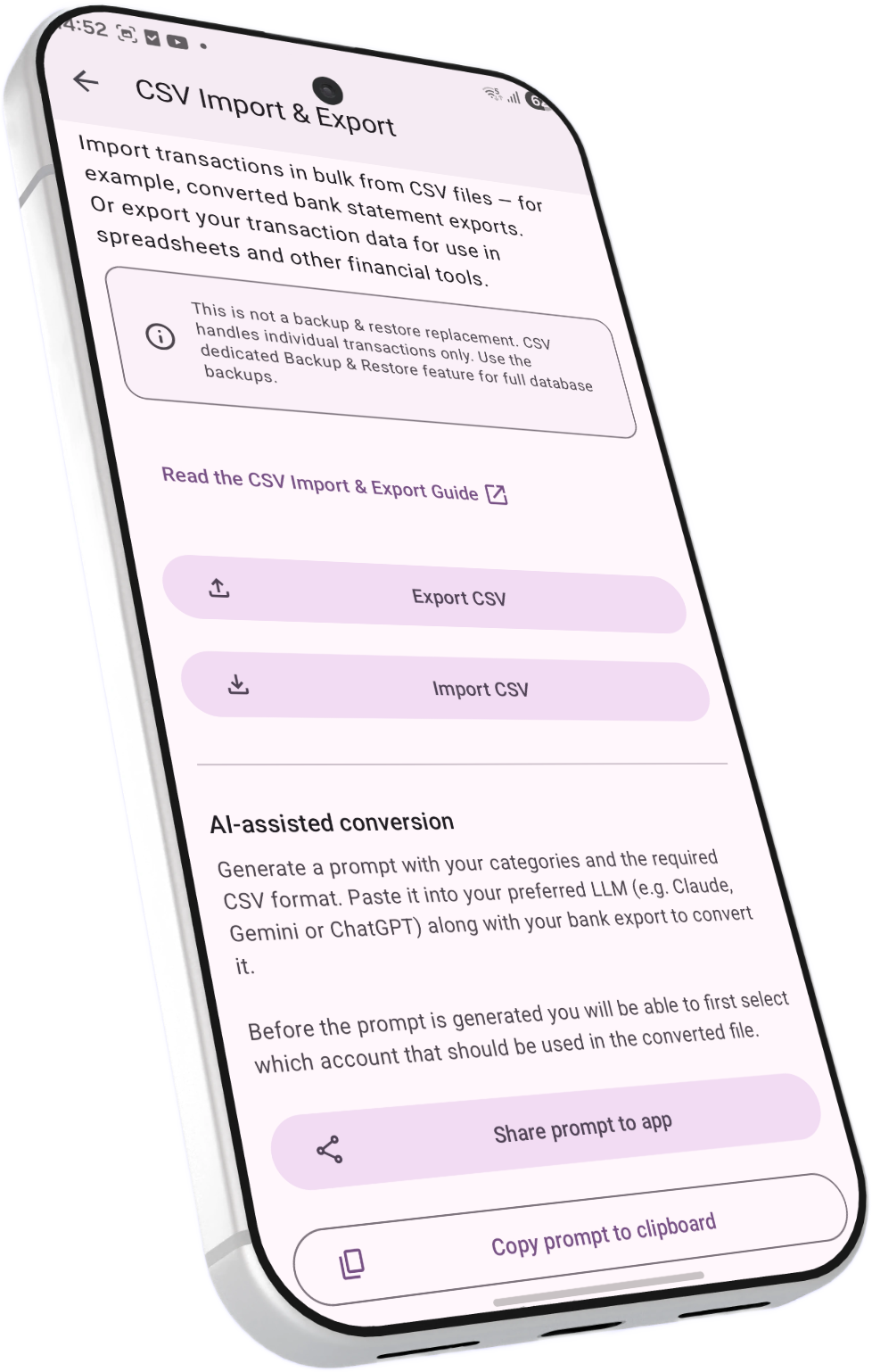
Everything you need to bulk-import transactions into BudgetViz or export your data for use in spreadsheets and other financial tools.
BudgetViz uses a simple CSV (Comma-Separated Values) format for transferring transactions in and out of the app. This is separate from the full backup & restore feature, which saves and restores the entire database.
Import is designed for bulk-adding new transactions — for example, converting a bank statement export into the BudgetViz format and importing it all at once. Before anything is saved, BudgetViz checks for overlaps with your existing transactions so you stay in control. Export is designed for getting your transaction data out — into Excel, Google Sheets, or other financial tools.
Not a backup and restore replacement: CSV import/export handles individual transactions only — it does not include accounts, categories, budgets, portfolios, or other app data. For full backups and restore functionality, use the dedicated Backup & Restore feature in the app, which saves and restores your entire database.
The CSV file uses a header row to identify columns. Only Timestamp and Amount are required — all other columns are optional. The importer is flexible: columns can appear in any order, and unrecognized columns are simply ignored.
Prepare your CSV file with the appropriate headers, then import it through the app. BudgetViz will check for duplicates and similar transactions before saving anything, giving you a chance to review everything first.
Create a CSV file with a header row. At minimum, include the Timestamp and
Amount columns. Add any other supported columns as needed. Column names are
case-insensitive.
Copy the CSV file to your Android device — via cloud storage, email, USB, or any file transfer method you prefer.
Open the app, go to Import & Export, and tap Import. Select your CSV file. BudgetViz reads the file and checks the format — if anything is wrong, you'll see an error message pointing to the exact line that needs fixing.
Once the file is read successfully, BudgetViz opens a review screen where it compares every imported row against your existing transactions. You decide what happens with each one — import it, skip it, or merge it with an existing transaction. Nothing is saved until you confirm. See Reviewing Your Import below for the full details.
Share directly into BudgetViz: You can also share CSV text from another app (such as a text editor or email) directly into BudgetViz using the Android share menu. The same review process applies — you'll always get a chance to check everything before it's saved.
Here's the simplest valid CSV — only the two required columns:
Timestamp,Amount
2025-01-15 09:30:00,-45.50
2025-01-16 13:00:00,2500.00
2025-01-17,-12.99
With just these two columns, BudgetViz will automatically infer the transaction type from the amount sign (negative = expense, positive = income) and assign the default category and account.
A more complete CSV using all available columns:
Timestamp,Amount,Type,MainCategory,SubCategory,Description,Tags,Notes,Account,OriginalCurrencyAmount,OriginalCurrencyCode
2025-01-15 09:30:00,-45.50,EXPENSE,Food,Groceries,Weekly shop,household|essentials,Bought organic produce,Checking Account,,
2025-01-16 13:00:00,2500.00,INCOME,Salary,,January salary,work,,Checking Account,,
2025-01-20 18:45:00,-89.00,EXPENSE,Dining,Restaurants,Dinner at Bella Italia,dining|date-night,Anniversary dinner,Credit Card,-9.50,EUR
Before any imported transactions are saved, BudgetViz compares them against your existing data and opens a review screen. This means you never have to worry about accidentally creating duplicates — you're always in control of what gets added or changed.
BudgetViz looks at each row in your CSV and tries to find a match among the transactions you already have. Based on how closely they match, each imported row falls into one of three groups:
These are rows that are identical to a transaction you already have — same amount, date, description, category, and account. They are set to Skip by default, since you most likely don't want to import them again. You can still choose to import them if needed.
These are rows that look similar to an existing transaction but aren't identical — for example, the amount and date match but the description is slightly different, or there's a small difference in timing. BudgetViz flags these for your review and shows you the existing transaction it found alongside the imported one, so you can decide what to do.
These are rows with no plausible match in your existing data. They are set to Import by default. You can also choose to skip any of them if you don't want to add them.
For possible matches, you have four choices. Exact duplicates and new transactions offer the same options, though their defaults differ.
Discard the imported row and leave your existing transaction as-is. Nothing changes.
Update the existing transaction with the data from the CSV, but keep the personal details you've already added — your tags, notes, category, and subcategory are preserved. Only the "bank side" of the transaction (amount, date, description) is updated from the CSV. This is useful when the CSV has more accurate or more recent data from your bank, but you don't want to lose the categorization work you've already done.
Replace the existing transaction with the CSV data more broadly. The CSV values take priority, but if a field in the CSV is empty, the existing value is kept. Certain protected fields like recurring schedules and transfer links are never overwritten.
Ignore the match entirely and add the CSV row as a brand-new transaction, even if a similar one already exists. Use this when two transactions genuinely look alike but are separate purchases.
Multiple match candidates: Sometimes an imported row is similar to more than one existing transaction. When that happens, BudgetViz shows you all the candidates ranked by how closely they match. You can switch between them to pick the right one before choosing Merge or Overwrite.
When several imported rows and several existing transactions are all very similar to each other — for example, you buy the same coffee every day and the CSV contains a week's worth — BudgetViz groups them together rather than trying to guess which specific import row matches which specific existing transaction.
For these groups, you can choose to:
Leave your existing transactions untouched and only import the ones that appear to be genuinely new. For example, if you already have 3 coffee purchases and the CSV contains 5, BudgetViz imports only the 2 new ones. This is the default.
Remove all existing transactions in the group and import all the CSV rows as new transactions. Useful if your bank data is more reliable than what you currently have.
Discard all the CSV rows in this group and keep your existing transactions unchanged.
Break the group apart into individual rows so you can decide what to do with each one separately.
If your CSV covers a long time period but you only want to import a portion of it, you can narrow the view to a specific date range. Tap the filter button at the top of the review screen to pick a start and end date. Only the transactions within that range will be shown and processed when you confirm — everything outside the range is left out.
When you have a large import, you don't have to go through every row one by one. The overflow menu (three dots) offers shortcuts to apply the same action to entire groups at once — for example, merge all possible matches, skip all possible matches, import all new transactions, or skip all new transactions. You can always adjust individual rows afterwards.
A summary bar at the bottom of the review screen keeps a running count of what will happen — how many transactions will be imported, merged, overwritten, or skipped. When you're satisfied, tap Confirm. BudgetViz shows you a final summary of all the changes before applying them. Nothing is saved until you give the final confirmation.
Changing categories during review: You can also change the category of any imported transaction right from the review screen — just tap the category to pick a different one. This saves you from having to re-categorize transactions after they're imported.
Conflict protection: BudgetViz prevents two imported rows from targeting the same existing transaction. If you try to merge or overwrite an existing transaction that's already claimed by another import row, you'll see a warning and the action won't be applied. This ensures every existing transaction can only be modified by one import row at a time.
The table below lists every column the importer recognizes. Column names in the header row are
case-insensitive (e.g., timestamp, Timestamp, and TIMESTAMP all work).
Columns can appear in any order.
| Column | Required | Description | Example |
|---|---|---|---|
| Timestamp | Required | Date and time of the transaction. Many formats are accepted — see Date Formats below. | 2025-01-15 09:30:00 |
| Amount | Required | Transaction amount. Supports various number formats, currency symbols, and locale conventions — see Amount Formats below. Use a negative value for expenses. | -45.50 |
| Type | Optional | Transaction type: INCOME, EXPENSE, or TRANSFER (case-insensitive). If omitted, the type is inferred from the amount sign: negative = expense, zero or positive = income. When provided, the amount sign is enforced to match the type. |
EXPENSE |
| MainCategory | Optional | Name of the main category. Must match an existing category in BudgetViz. If not found or omitted, the default category is used. | Food |
| SubCategory | Optional | Name of the subcategory (under the matched main category). If not found or omitted, the default subcategory for the resolved main category is used. | Groceries |
| Description | Optional | Free-text description of the transaction. | Weekly grocery shop |
| Tags | Optional | One or more tags, separated by the pipe character |. |
household|essentials |
| Notes | Optional | Additional notes or comments about the transaction. | Bought organic produce |
| Account | Optional | Name of the account. Must match an existing account in BudgetViz. If not found or omitted, the default account is used. | Checking Account |
| OriginalCurrencyAmount | Optional | If the transaction was made in a different currency, this is the original amount.
Both this and OriginalCurrencyCode must be present for the original currency to be recorded. |
-9.50 |
| OriginalCurrencyCode | Optional | ISO 4217 currency code for the original currency (e.g., EUR, USD, GBP).
Both this and OriginalCurrencyAmount must be present for the original currency to be recorded. |
EUR |
Category & account matching: The importer matches category, subcategory, and account names against what you already have set up in BudgetViz. If a name doesn't match, the importer gracefully falls back to the default. Make sure the names in your CSV match your BudgetViz categories and accounts exactly.
The Timestamp column accepts many common date and date-time formats. If only a date is provided
(without a time component), midnight (00:00:00) is used as the time.
2025-01-15T09:30:00
2025-01-15 09:30:00
2025-01-15 09:30
2025-01-15
01/15/2025 13:30:00
01/15/2025 13:30
01/15/2025 01:30:00 PM
01/15/2025 01:30 PM
01/15/2025
2025.01.15 09:30:00
2025.01.15
15-Jan-2025
15-Jan-2025 09:30:00
Recommended format: Use yyyy-MM-dd HH:mm:ss (e.g., 2025-01-15 13:30:00) for maximum clarity and compatibility. This is also the format used when exporting from BudgetViz. Most formats use 24-hour notation. The US date format (MM/dd/yyyy) also accepts 12-hour time with an AM/PM suffix (e.g., 01/15/2025 09:30 PM).
The Amount column is flexible and handles a wide range of locale-specific number formats,
thousand separators, and even currency symbols (which are stripped automatically).
1234.56
-1234.56
+1234.56
1,234.56
1,234,567.89
1.234,56
1.234.567,89
12,99
1 234.56
1'234.56
$1,234.56
1.234,56€
150 kr
RM 500
1234.56-
Some bank formats place the minus sign at the end
Ambiguous amounts: A value like 1,234 is interpreted as one thousand two hundred thirty-four (the comma is treated as a thousand separator since it is followed by exactly three digits). A value like 1,23 is interpreted as 1.23 (the comma is treated as a decimal separator). To avoid ambiguity, use the standard decimal point format (e.g., 1234.00).
When you export transactions from BudgetViz, the app writes a standard CSV file containing all the columns listed in the Column Reference above. The exported file uses these conventions:
The file includes a header row with all column names, followed by one row per transaction. Values are comma-separated and quoted where necessary.
All dates are exported in the unambiguous yyyy-MM-dd HH:mm:ss format, using your device's time zone.
Amounts are exported as plain decimal numbers with no currency symbols or thousand separators (e.g., -45.5).
Multiple tags are joined with the pipe character | (e.g., household|essentials).
Scheduled transactions that haven't been paid yet are excluded from the export. Only realized transactions are included.
If a transaction uses the default subcategory, the SubCategory field is left empty in the export to keep the file clean.
The exported CSV is fully compatible with the import format — you can export from one device and import into another, or edit the file in a spreadsheet application and re-import it.
Safe to re-import: If you re-import an exported file on the same device, the review screen will flag the rows as exact duplicates and default to skipping them, so no accidental duplicates will be created. The export/import function is still not meant as a backup and restore replacement — there is a separate dedicated function for that purpose.
Most banks offer CSV or Excel exports of your account statements. These won't match the BudgetViz format directly, but you can transform them with a spreadsheet or a simple script. The key steps are typically: rename or map columns to the BudgetViz column names, ensure the date format is one of the supported formats, and make sure amounts use a recognizable number format.
If a row in your CSV has invalid data, the importer will report the error with the exact line number before the review screen opens. Common issues include unrecognized date formats, non-numeric amount values, and invalid transaction types. Fix the reported line and re-import. Once the file passes validation, all further decisions happen in the review screen.
Type inference: If you leave out the Type column entirely, BudgetViz will
automatically classify transactions as expenses (negative amounts) or income (zero or positive amounts).
This can simplify your CSV significantly.
The OriginalCurrencyAmount and OriginalCurrencyCode fields are designed for
transactions made in a foreign currency. For example, if your account is in SEK but you made a purchase in EUR,
set the main Amount to the SEK value and use the original currency fields for the EUR amount.
Both fields must be present and valid for the original currency information to be recorded — if either is missing
or invalid, the original currency data is simply skipped.
When importing many transactions at once — say, several months of bank statements — the review screen makes it easy to stay in control. Use the date filter to focus on one month at a time, and use the bulk actions in the overflow menu to quickly handle large groups of new transactions or possible matches. You can always fine-tune individual rows afterwards.
Because the format is simple and well-defined, you can build automation scripts or tools that convert exports from your bank, brokerage, or other financial service into the BudgetViz CSV format. This makes bulk-importing new transactions fast and repeatable.
BudgetViz can automatically assign categories to imported transactions using a built-in machine-learning model that learns from your existing transaction history. This is especially useful for bulk imports where manually categorizing every transaction would be tedious.
When auto-categorization is enabled, the importer checks each incoming transaction. If a transaction
would land in the default (uncategorized) category — either because the CSV didn't include a
MainCategory column or because the specified category wasn't found — BudgetViz
analyzes the transaction's Description field and compares it against patterns
it has learned from your previously categorized transactions.
The model uses a technique called Naive Bayes classification with TF-IDF-inspired word scoring. In plain terms: it looks at the words in the description, checks which categories those words have appeared in before, and picks the most likely match. It predicts both a main category and a subcategory independently.
Enabling the feature: Auto-categorization is controlled by a setting in the app. Go to Settings → Auto-assign categories to toggle it on or off. When disabled, imported transactions without a valid category simply use the default category as usual.
To avoid incorrect assignments, BudgetViz only applies a suggestion when the model is sufficiently confident. A category and a subcategory suggestion must meet certain confidence thresholds. If either threshold isn't met, the transaction keeps the default category or default subcategory respectively.
When importing dozens or hundreds of transactions from a bank statement, you don't need to manually categorize each one — the model handles the ones it recognizes.
The model is trained on your own transaction history. The more categorized transactions you have, the more accurate the predictions become. It learns your spending patterns, not generic ones.
The confidence thresholds mean the model only assigns a category when it's reasonably sure. Low-confidence guesses are left as uncategorized so you can review them yourself.
The model runs entirely on your device — no data is sent to external servers. It's built from your local transaction history and stays private.
New users & small datasets: If you're just getting started with BudgetViz and have few categorized transactions, the model won't have enough data to make reliable predictions. You'll see the biggest improvement once you have at least 50 or more categorized transactions with descriptions. Until then, expect most imports to land in the default category.
A few other things to keep in mind:
The model works by analyzing the Description field. If a transaction has no
description (or the description is empty), auto-categorization has nothing to work with
and the transaction will use the default category.
The model tokenizes descriptions into individual words. It works best when your imported descriptions use similar wording to your existing transactions. Mixing languages or using very different description styles may reduce accuracy.
Auto-categorization only kicks in when a transaction would otherwise be uncategorized. If your
CSV includes a valid MainCategory that matches an existing category in the app,
that explicit assignment is always respected.