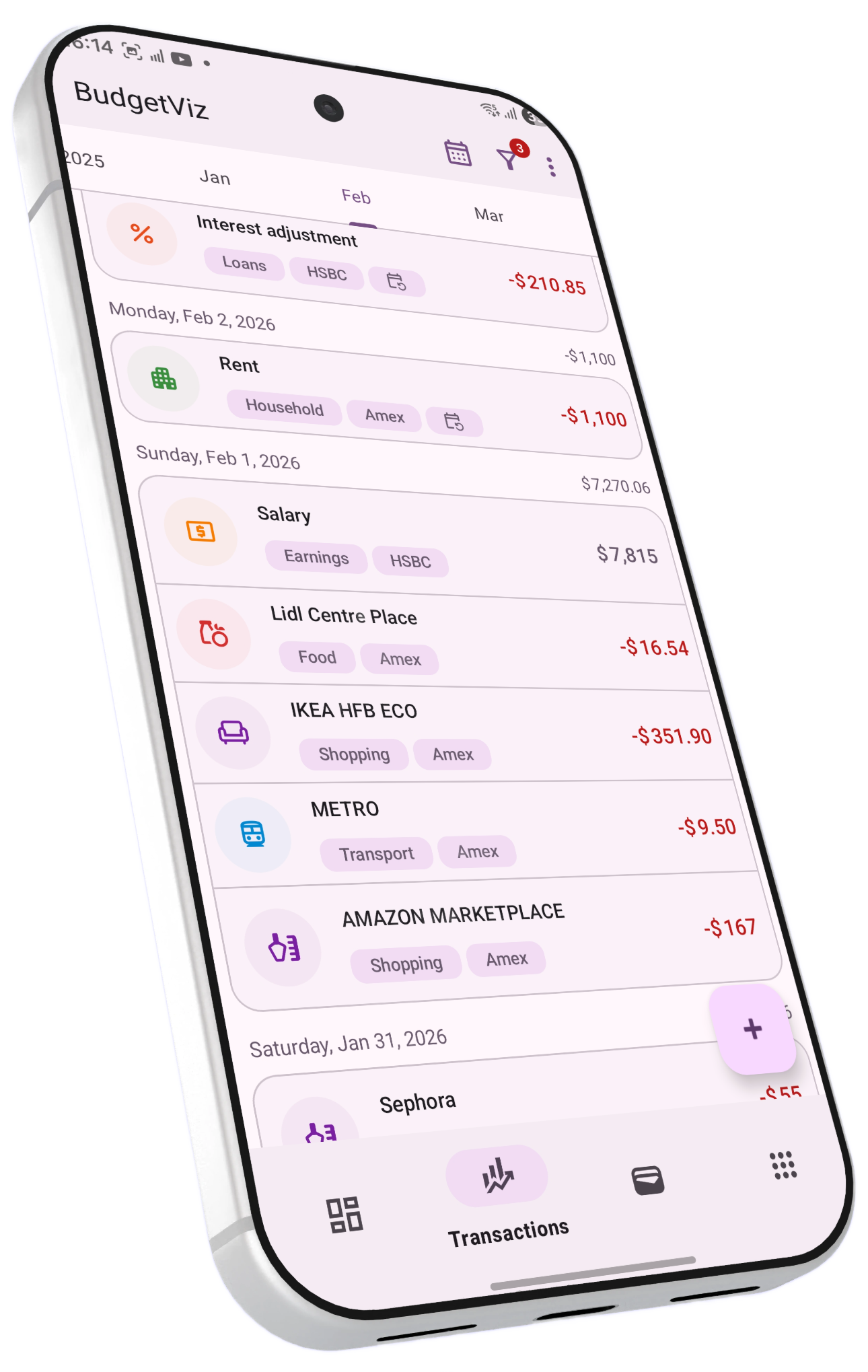
Everything you need to know about recording, managing, and automating your financial transactions in BudgetViz.
A transaction is the core building block of BudgetViz. Every time money enters, leaves, or moves between your accounts, that event is recorded as a transaction. Each transaction captures a rich set of information that powers your reports, budgets, and analytics.
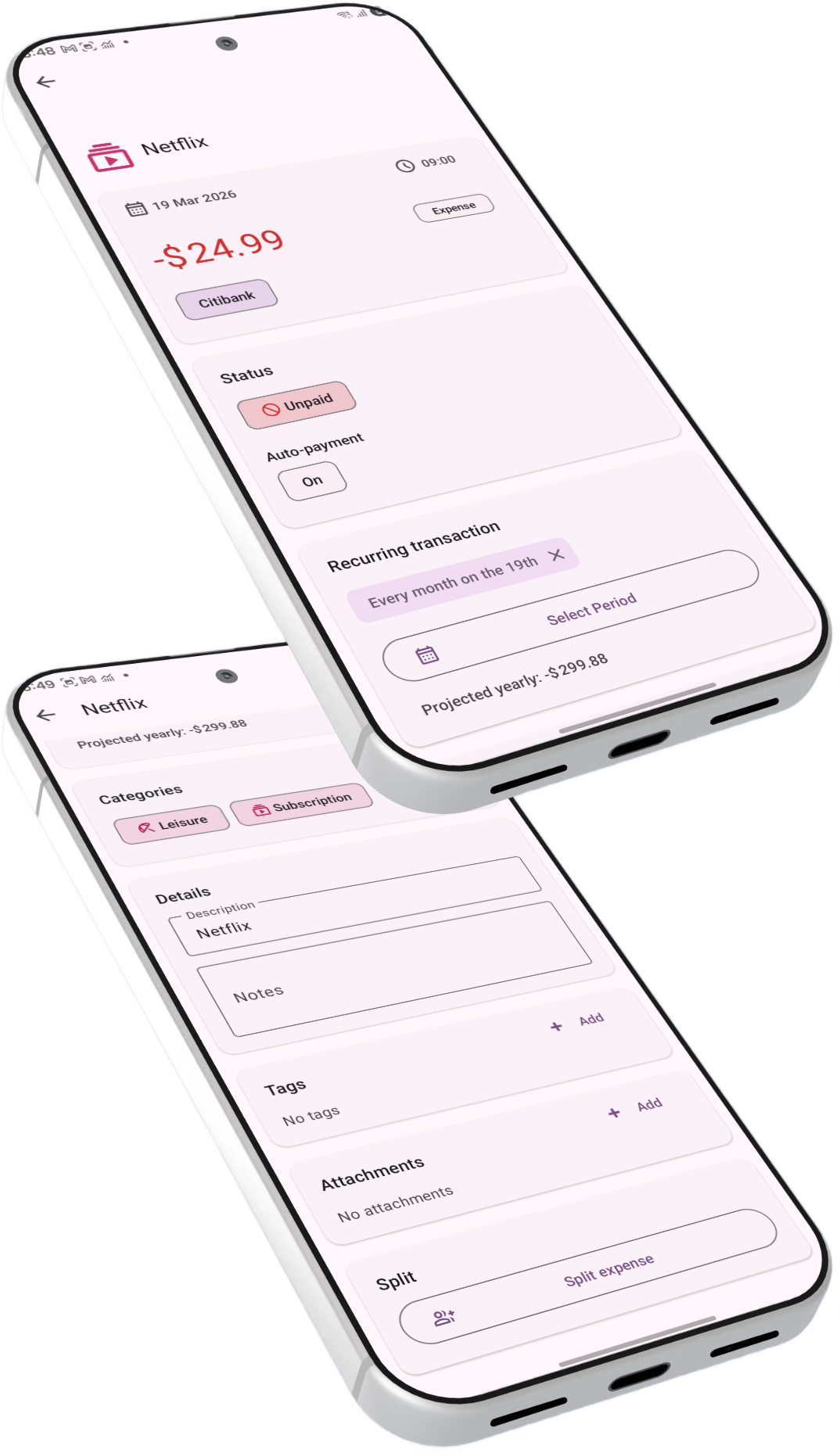
The monetary value and which account it belongs to. The amount's sign is enforced by the transaction type — expenses are always negative, income is always positive.
The transaction type (expense, income, or transfer) and a category/subcategory pair that classifies the transaction for reporting and budgeting.
When the transaction occurred. For recurring transactions, BudgetViz also tracks a separate scheduled timestamp that preserves the original schedule even if you record the actual payment at a different time.
A description (such as a merchant name or payment reference) and optional free-text notes for additional context. Imported transactions also retain their original bank description.
Smart category suggestions. When you enter a description, BudgetViz can automatically suggest a category and subcategory based on your past transactions. The more transactions you add, the smarter the suggestions become.
Every transaction in BudgetViz is one of three types. The type determines how the amount is stored, how it appears in reports, and what operations are available.
Money leaving an account. The amount is always stored as a negative value. Expenses are what you spend — groceries, rent, subscriptions, dining, and anything else that reduces your account balance.
Money entering an account. The amount is always stored as a positive value. Income covers salary, freelance payments, interest, dividends, rental income, refunds, and any other inflow of money.
Money moving between accounts. Transfers don't change your net worth — they just shift funds from one place to another. This includes bank-to-bank transfers, credit card payments, investment contributions, and balance adjustments.
Automatic sign enforcement. You don't need to worry about entering negative amounts for expenses. BudgetViz automatically enforces the correct sign based on the transaction type — enter "50" as an expense and it becomes −50 internally. This ensures consistency across all your reports.
You can change a transaction's type after creation. If you switch an expense to income (or vice versa), the sign is automatically corrected. Converting to or from a transfer has additional implications — see the next section for details.
Transfers are the most versatile transaction type in BudgetViz. They serve two distinct purposes: moving money between your accounts (linked transfers) and adjusting account balances (single-ended transfers).
When you transfer money from one account to another — say, from your checking account to your savings — BudgetViz creates a linked pair of transactions: one on each account, tied together by a shared transfer ID.
Transaction 1
Transaction 2
Both transactions reference the same transfer ID, so BudgetViz knows they're two sides of the same event. When you open a linked transfer, you'll see tab controls at the top — "From" and "To" — letting you switch between viewing and editing either side.
When you change a field on one side of a linked transfer — such as the description, date, category, or payment status — BudgetViz offers to update the other side too. A brief notification appears with an undo option in case you want to keep the other transaction unchanged.
If the two accounts use different currencies, BudgetViz automatically calculates the converted amount for the destination account using the current exchange rate. Each side shows the amount in its own account's currency.
If you convert a linked transfer to an expense or income, BudgetViz automatically removes the linked transaction from the other account. If you later switch it back to a transfer with two accounts, the link is restored.
Not all transfers involve two accounts. A single-ended transfer is a transfer transaction on just one account, with no linked counterpart. These are used for situations where money enters or exits your financial model without a corresponding account on the other side.
The most common use case is reconciliation — adjusting an account's balance to match reality. For example, if your investment account's actual value has changed due to market movement, you can use a balance correction (which creates a single-ended transfer) to update the recorded value. Similarly, if a property you own has appreciated, a single-ended transfer captures that change without needing a "source" account.
When to use each type. Use linked transfers for real money movements between your accounts (bank transfer, credit card payment, investment deposit). Use single-ended transfers — typically via balance corrections — for reconciling accounts where the balance has changed externally (investment gains/losses, property revaluation, reconciling discrepancies).
Every transaction has a payment status that tracks whether it has actually been executed. This is especially important for recurring and scheduled transactions, but applies to all transactions.
Transaction has been executed
Unpaid, scheduled for the future
Unpaid and past its due date
Deliberately skipped this period
Part of a recurring series
Not part of any recurring series
When you create a regular transaction, it defaults to paid — it represents something that has already happened. But when a recurring transaction generates its next occurrence, that new transaction is created as unpaid, representing a future obligation.
Unpaid transactions appear in your transaction list and are included in reports by default. You can use the transaction status filter to narrow down which statuses to include — for example, showing only paid transactions, only upcoming ones, or only non-recurring transactions. When no status filter is selected, all transactions are included regardless of their payment status.
When a payment is due, you have three options:
Mark the transaction as paid. Depending on your settings, the timestamp can be updated to the actual payment time. For recurring transactions, this also triggers the creation of the next transaction in the series.
Mark the transaction as deliberately skipped for this period. The transaction remains in your records but is flagged as skipped. Like paying, this also triggers the next recurring transaction to be created — your schedule continues uninterrupted.
Do nothing — the transaction stays unpaid and may become overdue. Useful if you want to be reminded again later.
Payment reminders. When a payment is due, BudgetViz can send you a notification reminding you to pay or skip it. Reminders are configurable — set them to arrive at the right time for your routine. Enable them in the app settings under reminders.
Reports support an Include Unpaid option that overlays unpaid transaction amounts alongside paid ones. On line charts, this appears as a dashed line showing the projected total (paid + unpaid), making it easy to see how your balance, expenses, or income would look if all upcoming payments are accounted for. On bar charts, unpaid amounts appear as a stacked grey section on top of the paid portion.
This is a powerful forecasting tool — you can use it to project your account balance at the end of the month, estimate total expenses in a budget period, or see expected income including scheduled but not yet received payments. See the Custom Reports Guide for details on configuring chart options.
Recurring transactions in BudgetViz use a chaining model — each transaction in a recurring series is a real, individual transaction linked to the next one through a shared recurring ID and schedule. This is different from template-based approaches and gives you full control over each occurrence.
To make any transaction recurring, open it for editing and use the Recurring Transaction card to set a schedule. You can also configure this when creating a new transaction.
Paid ✓
Paid ✓
Unpaid (anchor)
Unpaid (projected)
When you set up a recurring transaction, BudgetViz creates the first occurrence. When you pay or skip it, the next occurrence is automatically created as an unpaid transaction at the next scheduled date. This continues indefinitely, one step at a time. The latest unpaid transaction in a recurring series is called the anchor — it is a real transaction stored in the database that you can open, edit, and act on.
For example, a monthly rent payment of $2,000 on the 25th of each month. The first occurrence is created at the date you specify.
When you mark the transaction as paid (or skipped), BudgetViz automatically creates the next occurrence — a new unpaid transaction dated for the next period (e.g., the 25th of the following month).
Each time you pay or skip, the next one is created. There is always exactly one unpaid anchor transaction in the future for each recurring series, ready for you to act on.
While only the anchor transaction physically exists in the database, BudgetViz can look further ahead. When you view a time period that extends beyond the anchor, the app dynamically generates projected transactions for the remaining occurrences in that period. For example, if your monthly rent anchor is in March but you're viewing a report through June, BudgetViz projects the April, May, and June occurrences automatically.
Projected transactions appear in the transaction list and contribute to charts and reports, but they are not stored — they are calculated on the fly. You can recognise them because they cannot be opened or edited. If you need to change the recurring series, tap the anchor transaction instead. Once you pay or skip the anchor, it advances the chain and the next real transaction is created.
Anchor vs. projected. The anchor is a real transaction you can edit — change the amount, description, category, or recurring schedule. Projected transactions inherit everything from the anchor and exist only to give you an accurate picture of what lies ahead. They show up in reports and chart totals but disappear and recalculate whenever the anchor changes.
Each recurring transaction maintains two timestamps: the scheduled timestamp (when the payment was supposed to happen according to the recurring schedule) and the actual timestamp (when you actually recorded or paid it). This distinction is important because it keeps the recurring chain aligned with the original schedule even if you pay early, late, or on a different day.
For example, if your rent is due on the 25th but you pay it on the 23rd, the scheduled timestamp stays as the 25th. The next occurrence is calculated from the scheduled date, so it will correctly fall on the 25th of the next month — not two days early.
Recurring periods support a variety of schedules:
Weekly, bi-weekly, monthly, semi-monthly, quarterly, semi-annually, and yearly. You can also set custom intervals like "every 3 weeks" or "every 2 months".
For monthly schedules, specify which day of the month the transaction falls on. For semi-monthly periods you can specify when both days should fall. BudgetViz handles months with fewer days gracefully.
If a scheduled date falls on a weekend or holiday, BudgetViz can automatically shift it to the nearest business day — either before or after, depending on your preference.
Once a transaction is set to recur, BudgetViz calculates projected monthly and yearly amounts based on the recurring period. These projections appear on the transaction detail screen and are used throughout the app's reporting and budgeting features to help you understand the annualized impact of each recurring commitment.
In addition, projected transactions generated from recurring anchors are included in report charts and balance calculations when the report period extends into the future. Combined with the Include Unpaid chart option, this gives you a complete picture of expected cash flow — see the Payment Status section for more on how unpaid amounts appear in charts.
If you change the recurring schedule on an existing transaction — say, switching from monthly to quarterly — BudgetViz automatically cleans up any future unpaid transactions from the old schedule and starts the new chain from the current transaction. Similarly, removing the recurring period entirely stops the chain; no new transactions will be created when this one is paid.
Changing dates on recurring transactions. If you manually change the date or time on a recurring transaction, BudgetViz will warn you that only the actual timestamp changes — the underlying scheduled timestamp remains the same. This means the recurring chain continues from the original schedule, not from the new date. If you want to change when future occurrences fall, you need to update (or remove and re-add) the recurring period itself — it will then pick up the transaction's current date as the new anchor point.
Linked transfer transactions can also be recurring. When a recurring linked transfer is paid or skipped, BudgetViz creates the next occurrence for both sides of the transfer, ensuring the pair stays synchronized. Both new transactions share a new transfer ID, maintaining the link across periods.
For recurring transactions that you don't need to manually approve each time, BudgetViz offers auto-payment. When enabled, the app automatically marks a transaction as paid when it comes due and notifies you that it's been done — no action required on your part.
Auto-payment can be configured at two levels. There's a global setting that enables or disables the feature app-wide, and a per-transaction preference that lets you fine-tune the behavior for individual transactions:
The transaction respects the global setting. If auto-payment is enabled globally, this transaction will be auto-paid. If disabled globally, it won't be.
This specific transaction will always be auto-paid when due, regardless of the global setting. Useful for fixed bills like rent or insurance that never vary.
This transaction will never be auto-paid, even if the global setting is enabled. Use this for payments where the amount might change or where you want to manually confirm each one.
Best of both worlds. A common setup is to enable auto-payment globally and set "never auto-pay" on transactions where you want manual control. This way, most of your recurring bills are handled automatically while you still get prompted for variable or important payments.
When you pay for something on behalf of others — a dinner with friends, shared household expenses, or a group purchase — you can split the transaction to track who owes what.
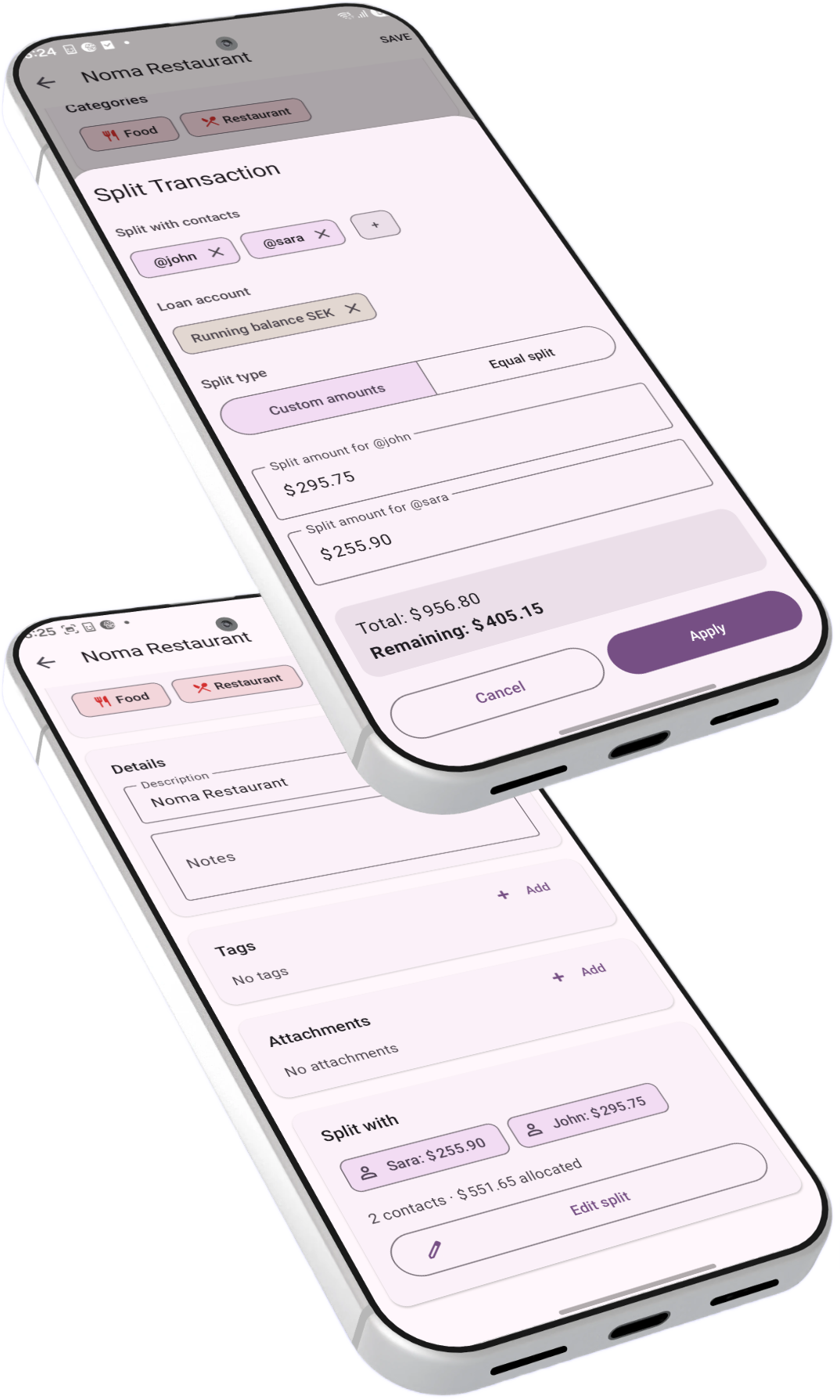
Splitting creates a parent-child relationship between transactions. The original expense becomes the parent transaction, and each person's share is recorded as a child transaction on a small-balance loan account (used to track what people owe you).
You have an expense transaction — say, a $60 restaurant bill on your checking account. Only expense transactions can be split.
Tap the split button and assign amounts to contacts. For example, Alice owes $20 and Bob owes $20, while your share is the remaining $20.
BudgetViz creates a child transaction for each contact's share, linked to a small-balance loan account. The parent transaction shows all its children, and each child links back to its parent.
You can edit the split at any time — change amounts, add or remove contacts, or remove the split entirely. The loan account gives you a running tally of who owes you what, across all your shared expenses.
Requires a small-balance loan account. To split transactions, you need at least one account of the "Small Balance Loan" type. If you don't have one, BudgetViz will prompt you to create one when you first try to split. These accounts are designed specifically for tracking informal debts and tabs with contacts.
When you make a purchase in a currency different from your account's currency — such as paying in EUR while abroad when your account is in USD — BudgetViz can record both the original foreign amount and the converted amount that actually hits your account.
When entering or editing a transaction, you can specify the original foreign currency and amount. For example, a purchase of €25 that was charged as $28 USD to your bank account.
BudgetViz keeps both the account-currency amount ($28 USD) and the original foreign-currency amount (€25). The foreign amount is shown as an additional chip on the transaction detail screen.
If you change the account on a transaction with a foreign currency, or when an unpaid transaction is marked as paid, BudgetViz can recalculate the account-currency amount using the current exchange rate — ensuring accuracy even when rates have changed.
Clear the foreign amount. If you've recorded a foreign currency by mistake or it's no longer relevant, you can remove it by tapping the close icon on the foreign currency chip. The account-currency amount will be kept as-is.
For power users and automation enthusiasts, BudgetViz supports creating transactions via deep links. This means you can trigger a new transaction from outside the app — through automation tools like Tasker, Shortcuts, or any app that can open URLs.
A deep link pre-fills the transaction fields (amount, description, account, category, type, and more) and opens the transaction detail screen ready for review and confirmation. This enables workflows like creating a transaction directly from a bank notification, a voice assistant, or a custom NFC tag.
For the full deep link specification — including all supported parameters and an interactive URL builder — see the Deep Links Guide.