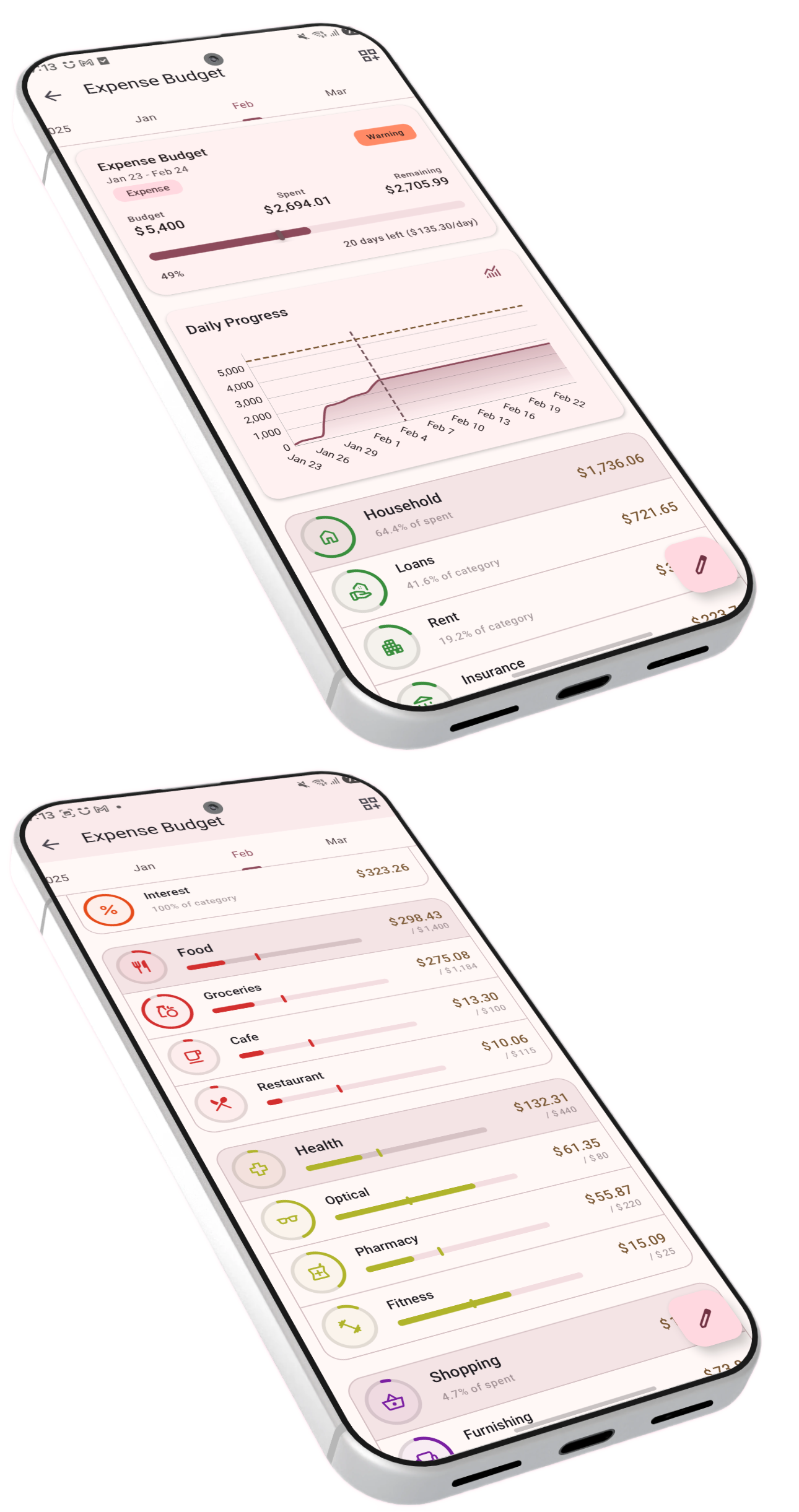
Budgets are how BudgetViz turns raw transaction data into actionable financial goals. Set targets, track progress, and understand exactly where your money goes.
A budget in BudgetViz is a lens over your financial life, shaped by three things: a time period, a set of filters (which accounts, categories, and transaction types to include), and optional amount targets. It isolates a specific set of transactions and gives you analytics, progress tracking, and health indicators for that set.
Each budget operates on a repeating time period. At the end of each period, it rolls over to the next one, letting you compare performance across periods and build up a meaningful history over time.
You can have as many budgets as you need. A single monthly expense budget is a great starting point, but many people create several — for example, one for household expenses, one for personal spending, one for a savings goal, and one for overall cash flow. Each budget operates independently with its own scope, targets, and reports.
BudgetViz offers three budget types, each designed for a different financial question. The type determines how amounts are interpreted, how progress is calculated, and how health indicators behave.
Track and control how much you spend. Set a ceiling for a period and see exactly how your actual spending compares — overall and broken down by category and subcategory.
Track income or savings progress toward a goal. Set a target amount you want to reach by the end of the period and monitor how you're tracking — ideal for building an emergency fund, saving for a trip, or tracking income goals.
Monitor the net result of income minus expenses. Optionally set a cash flow target, or use it as a pure analytical tool — a comprehensive breakdown of money in and money out, with no target required.
Set a spending limit — say $2,000 per month — and BudgetViz tracks actual spending against it. The budget shows whether you're on pace, ahead, or falling behind. Spending above your target triggers warning and critical health states, while staying well under earns an excellent or good rating. Expense budgets can also enable rollover to track how unspent or overspent amounts accumulate across periods.
Instead of tracking spending, a saving budget tracks how much you accumulate toward a goal. It focuses on income transactions by default, making it a natural fit for income goals or savings when scoped to savings accounts. Progress works in reverse compared to expense budgets: exceeding your target is a success, while falling short triggers caution and warning states.
Cash flow budgets take the broadest view, considering both income and expenses to calculate the net difference. You can set a target (e.g. "$500 positive cash flow per month"), or leave it at zero to use the budget purely as an analytical report — a full breakdown of money in and out by category, without any pass/fail judgement.
Cash flow budgets offer a transaction type toggle. When viewing a cash flow budget, you can switch between viewing the net cash flow, only expenses, only income, or only transfers. This lets you slice the same budget in different ways without creating separate budgets for each perspective.
Filters determine which transactions are included in a budget's calculations and analytics. The combination of filters is what makes each budget unique — the same time period can power completely different budgets depending on which accounts, categories, and transaction types you include.
Every budget operates on a repeating schedule — daily, weekly, bi-weekly, monthly, quarterly, yearly, or any custom interval. The budget automatically rolls forward from one period to the next, and you can navigate to any past or future period.
Choose which accounts to include. A household expense budget might include your checking account and credit card. A savings budget might only include a dedicated savings account. A cash flow budget might span all your liquid accounts.
Optionally restrict the budget to specific categories. For example, a "Food & Dining" expense budget that only includes food-related categories, or a "Fixed Costs" budget that tracks rent, insurance, and subscriptions.
Filter by expense, income, or transfer transactions. Expense budgets automatically focus on expenses, saving budgets on income, and cash flow budgets include everything by default — but you can customize this for any budget type.
Tags work as a cross-cutting filter across all other criteria. Tag transactions with "vacation" or "business" and create a budget scoped to just those tags — regardless of accounts or categories. You can also exclude specific tags. This gives you a flexible extra dimension for organizing your finances.
Beyond the main criteria, budgets can also filter by transaction status (paid or unpaid) and description keywords — allowing even more precise control over which transactions contribute to the budget.
Broad or narrow — your choice. A budget can be as wide as "all transactions from all accounts" or as narrow as "food expenses from my credit card". The flexibility of filters means you can create precisely the financial view you need.
BudgetViz lets you set amount targets at three levels of detail, creating a hierarchical goal structure for fine-grained control over your finances.
The top-level goal for the entire budget. For an expense budget, this is your total spending limit. For a saving budget, it's your savings goal. For cash flow, it's your desired net result.
Break your overall target down by category. For example, within a $2,000 expense budget, allocate $600 to groceries, $300 to dining, and $200 to transport. The sum of category targets cannot exceed the overall target.
Go even deeper within a category. If your dining category has a $300 target, you could allocate $200 to restaurants and $100 to takeaway. Subcategory targets are bounded by their parent category's target.
Targets form a hierarchy with built-in validation. The overall budget target is the ceiling. Category targets are carved out of the overall amount — their sum can never exceed the total. Subcategory targets are in turn carved out of their parent category. This prevents over-allocation at any level.
Set targets at any level you like. Many people set only an overall target and let the budget show the natural breakdown. Others set category targets for their biggest spending areas and leave the rest unallocated. You can also let a category target be automatically derived from the sum of its subcategory targets.
Cash flow budgets only support an overall target. Since the categories in a cash flow budgets can both have income and expense transaction, the targets can become ambigious. For this reason, category and subcategory targets are only available in expense and saving budgets.
Edit mode for targets. Activate edit mode via the pencil button, then tap any category or subcategory to set or update its target. BudgetViz shows the valid range — minimum (based on existing sub-allocations) and maximum (based on remaining budget) — along with the historical average, helping you set realistic targets.
Every budget with a target receives a real-time health status — a pacing indicator that tells you not just where you stand, but whether you're on track to finish the period within your goal. Health works differently depending on budget type and whether the period is ongoing or complete.
BudgetViz calculates where you should be based on how far through the period you are, then compares that with where you actually are. For expense budgets, spending less than expected is positive; for saving budgets, accumulating more is positive. A tolerance is applied early in the period to account for naturally lumpy spending patterns.
Well ahead of pace — significantly under budget (expense) or over target (saving)
Close to expected pace — spending or saving is in line with where you should be
Falling behind pace — spending faster or saving slower than planned
Significantly off track — at serious risk of exceeding budget or missing goal
Terminal state — expense budget exceeded or saving goal reached before period ends
Once complete, the health status becomes a final verdict. Expense budgets that came in under target are marked as a success, while overspending is graded from minor to significant excess. Saving budgets grade how close you came to your goal. Cash flow budgets evaluate whether you finished above or below target and whether the expense-to-income ratio was healthy.
Pacing metrics go beyond the health label. BudgetViz also calculates your original daily budget (target divided across the period), adjusted daily budget (how much you can spend per remaining day), deviation from expected pace, and — for expense budgets — an estimate of how many days until the budget would be exhausted at the current rate.
Dashboard insights and notifications. When an expense budget's health reaches a critical or exceeded state, BudgetViz surfaces a smart insight card on your dashboard so you can see at a glance which budgets need attention. BudgetViz also detects unusual spending spikes — if a category's spending in the current period is significantly above your historical average, a dedicated insight card highlights the anomaly. You can also enable budget alert notifications in settings to receive a push notification when a budget crosses these thresholds — even when the app isn't open.
Rollover and health status. By default, rollover budgets still calculate health and pacing against your normal per-period target — the rollover amount is shown as extra context. If you also enable cumulative target tracking, health and pacing switch to using the rollover-adjusted target instead.
Every budget comes with a rich set of analytics built into the detail screen — no need to create separate reports. Multiple chart views and detailed breakdowns update in real time as you add transactions.
The chart area includes a selection menu that lets you switch between different visualizations:
A cumulative line chart showing your running total against the target. Visualize your pace day by day and see at a glance whether you're trending above or below your goal line.
A bar chart showing how much you spent or earned each day (or each month for yearly budgets). Useful for spotting spikes, patterns, and unusually high-activity days.
See how spending or income is distributed across categories. Quickly identify which categories dominate your budget and where the largest amounts are concentrated.
Drill deeper into the distribution at the subcategory level for a more granular view of where exactly your money is going within each category.
See spending and income distributed across the accounts included in the budget. Understand which accounts carry the bulk of your financial activity.
Compare the current period to past periods at a glance — see how this month stacks up against the last 12 months, or this week against recent weeks. A powerful tool for spotting trends over time.
Below the charts, every category with activity during the period gets a card showing the amount, its percentage of the overall budget, and — if a target is set — a progress bar with a pace marker. Subcategories appear nested under their parent, creating a hierarchical breakdown from the overall budget down to the most granular level.
Tap any category or subcategory card to open a dedicated report — a daily cumulative chart filtered to just that area, with its own target line if applicable. Long-press to see a historical view comparing that category across past periods.
Cash flow budgets show extra detail. Each category card shows two percentage lines — its share of total expenses and its share of total income — giving a complete picture of its role in both sides of the cash flow equation.
Multi-currency support. Each budget can be set to a specific display currency. When a budget spans accounts in different currencies, all amounts are automatically converted to the budget's display currency (or your home currency if none is set).
Sometimes you underspend one month and overspend the next. Rollover lets you see the bigger picture by tracking the cumulative surplus or deficit across periods — so you can spot patterns that a single month can't show you.
Imagine you have a $500/month budget for groceries. In June you spend $400, leaving $100 unspent. In July you spend $550, going $50 over. Without rollover, those are just two separate months. With rollover enabled, BudgetViz calculates that across both months you budgeted $1,000 and spent $950 — so you're still $50 ahead overall. That cumulative context appears right alongside your normal targets and spending.
BudgetViz recalculates the rollover amount fresh every time you open the budget, so retroactive edits to past transactions are always reflected accurately.
Rollover is available for expense budgets with a recurring time period (monthly, weekly, etc.). To enable it, open the budget edit screen and toggle on Rollover budget. The toggle only appears when the budget type and period support it.
When rollover is active, the budget details screen shows a few extra things — but your progress bars, health status, and pacing continue to work against your normal per-period target, just as before:
The overall budget card and each category or subcategory row shows the rollover-adjusted amount in brackets next to your normal target. This tells you what the target would be if you counted everything cumulatively — a useful reference point, without changing how the budget actually tracks.
A card below the overall budget shows the period that rollover counting starts from. Tap it to change the start date — you can reset it to the current period, pick a specific date, or revert to the budget's creation date.
By default, rollover is purely informational — it shows you the cumulative picture without changing how the budget behaves. But if you actually set money aside between periods (like an envelope system), you can take it a step further.
Enable cumulative target tracking in the budget edit screen (it appears below the rollover toggle), and the budget switches from showing the rollover amount as context to actively tracking against it. Progress bars, health status, daily budget, and pacing all use the rollover-adjusted target instead of your per-period target. Your normal per-period target then moves to the brackets as reference.
Rollover is about seeing the bigger picture. For most people, the default mode is the right choice. It lets you see how your spending adds up across periods without creating the illusion that you have more to spend just because last month was quiet. Switch to cumulative tracking only if you genuinely earmark the surplus for this budget.
Expense budgets only. Rollover is designed for expense budgets with a recurring period. It's not available for saving budgets, cash flow budgets, or budgets using a custom date range.
BudgetViz offers two complementary ways to view your finances: budgets and portfolios. They serve different purposes, but together they give you a complete picture.
Track transaction activity over time against goals.
Track account balances and net worth over time.
In short: budgets are about flow — the movement of money during a period. Portfolios are about position — the state of your wealth at a point in time. Most people benefit from having both: budgets to manage day-to-day spending and saving, portfolios to track assets, debts, and investments over the long term.
They can overlap in scope. It's perfectly fine to have a budget and a portfolio that cover the same accounts. The budget will track the transactions flowing through those accounts, while the portfolio will track the resulting balances. They complement each other — the budget explains why a balance changed, and the portfolio shows what the balance is.